> For the complete documentation index, see [llms.txt](https://docs.sortment.com/llms.txt). Markdown versions of documentation pages are available by appending `.md` to page URLs; this page is available as [Markdown](https://docs.sortment.com/engage/profiles/user-profile-view.md).
# User Profile View
## **Accessing the profile view**
To open the full profile for a user:
* Navigate to the **Profiles page**.
* Click on any user row in the list — this will open that user's dedicated profile page.
* Or, use the search bar at the top to find profiles by UserID.
***
## **Key sections in the profile view**
### **1. Attributes**
This section shows user attributes, as selected and available from your data warehouse.
{% hint style="warning" %}
The workspace admin can configure the profile view to include certain attributes from user tables, related tables or traits (calculated or dynamic).
{% endhint %}
**Common examples for fields include:**
* **Name**: User’s full name.
* **Email**: Email address linked to the profile.
* **User ID**: Unique identifier from your backend system.
* **Sign-Up Date**: When the user first registered.
* **Other Fields**: Custom fields like “Number of Rides with Low Rating” or campaign-specific metadata may also appear.
> 💡 *These fields provide a snapshot of who the user is and are often used in personalization and segmentation.*
### **2. Dynamic traits**
Dynamic traits are calculated fields that reflect user behaviors or statuses, updated in near real-time. These are primarily used in journeys as variables to store and manage information.
> 🔁 *These traits simplify data handling and managing real-time events with warehouse data.*
### **3. Navigation tabs**
Across the top of the profile, you’ll see multiple tabs:
* **Events History** – For user activity/event tracking
* **Subscriptions** – To manage opt-in/opt-out preferences
Each tab provides deeper insights into specific aspects of the user’s interaction with your platform.
***
## Event history
Event history provides a chronological log of all events associated with a user, including campaign events and other real-time events. This allows you to track user actions, engagement, and interactions across campaigns and channels.
#### Use Case: Verifying Email Delivery and Engagement
This is a powerful tool for troubleshooting and understanding user engagement at an individual level.
Example scenario:
A marketing manager wants to confirm whether a recent promotional email was successfully delivered to a user and whether the user engaged with it.
Steps:
1. The manager navigates to the Profiles page, searches for the user using their User ID, and opens their profile.
2. Inside the Event History tab, they review recent events for that user.
3. The log shows:
* Email delivered event on 1 May 2025 at 10:47 AM
* Processed event at the same time
* Success event at the same time
4. Since the Email delivered event appears, the manager confirms that the email reached the user’s inbox.
5. However, no Email opened or Link clicked event is present, indicating the user hasn’t yet engaged with the email.
6. Based on this insight, the manager can inform the team for setting up re-engagement campaign for similar users directly within Sortment.
***
### Managing subscriptions
{% hint style="info" %}
Bounced contacts are automatically unsubscribed at the channel level for the workspace.
{% endhint %}
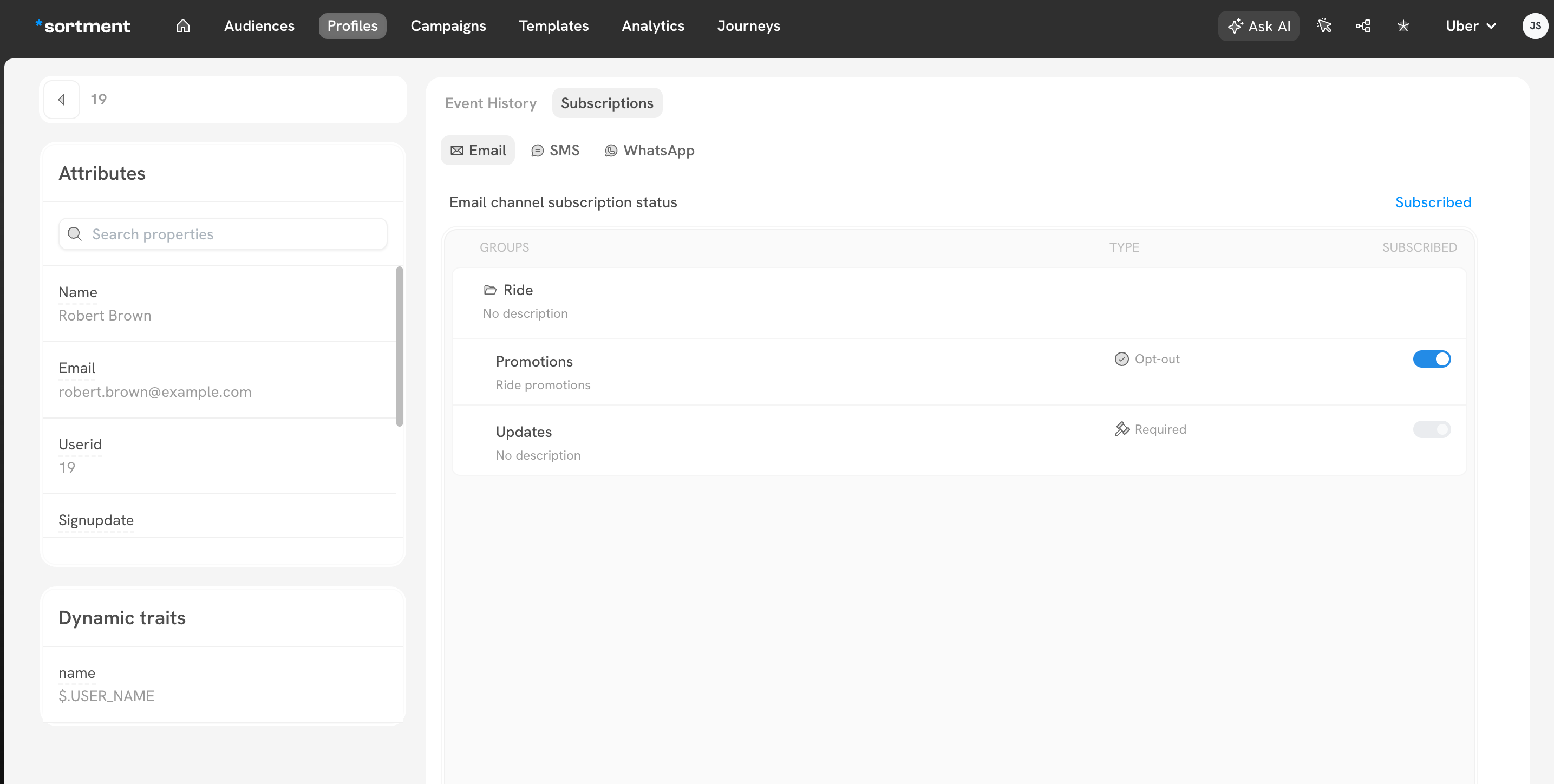
Subscriptions tab provides visibility and control over a user’s current subscription status across communication channels such as Email, SMS, and WhatsApp.
Each user’s subscriptions are organized into [subscription groups](/settings/subscription-groups-and-contact-fields.md#how-subscription-groups-work-in-sortment) (e.g., *Ride*, *Promotions*, *Updates*), with each group mapped to a subscription type:
| Required | Users are automatically subscribed; cannot opt-out for compliance |
| -------- | ----------------------------------------------------------------- |
| Opt-in | Users are unsubscribed by default and must opt-in explicitly |
| Opt-out | Users are subscribed by default but can choose to opt-out |
#### Key features of the Subscriptions Tab:
1. **Channel tabs:** Easily switch between Email, SMS, or WhatsApp to view and manage the user’s subscription status across different communication channels.
2. **Subscription groups:** Within each channel, subscriptions are grouped by category (e.g., *Promotions* for marketing messages, *Updates* for transactional notifications).
3. **Subscription type:** Each group displays its subscription type (*Opt-in*, *Opt-out*, *Required*), determining how the user can subscribe or unsubscribe.
***
### **Updating subscription status of a user**
You can manually update the subscription status of a user.
{% hint style="info" %}
You must be a workspace admin to do this action.
{% endhint %}
* For Opt-out subscription groups (e.g., *Promotions*), you can manually opt them out by toggling subscription status from enabled to disabled at a group label. You cannot subscribe them back via the platform due to regulatory concerns.
* For Opt-in subscription groups (e.g., *Newsletters*), you can manually opt them out or in by toggling subscription status from enabled to disabled or vice-versa at a group label.