> For the complete documentation index, see [llms.txt](https://docs.sortment.com/llms.txt). Markdown versions of documentation pages are available by appending `.md` to page URLs; this page is available as [Markdown](https://docs.sortment.com/how-to-guides/email-templates-with-sortment-ai.md).
# Email templates with Sortment AI
Sortment lets you generate email templates using AI by describing your campaign goal and target audience
> Ensure your brand guidelines, email design, and style preferences have been configured in the **AI Intelligence** settings before using this feature.
***
#### Navigation
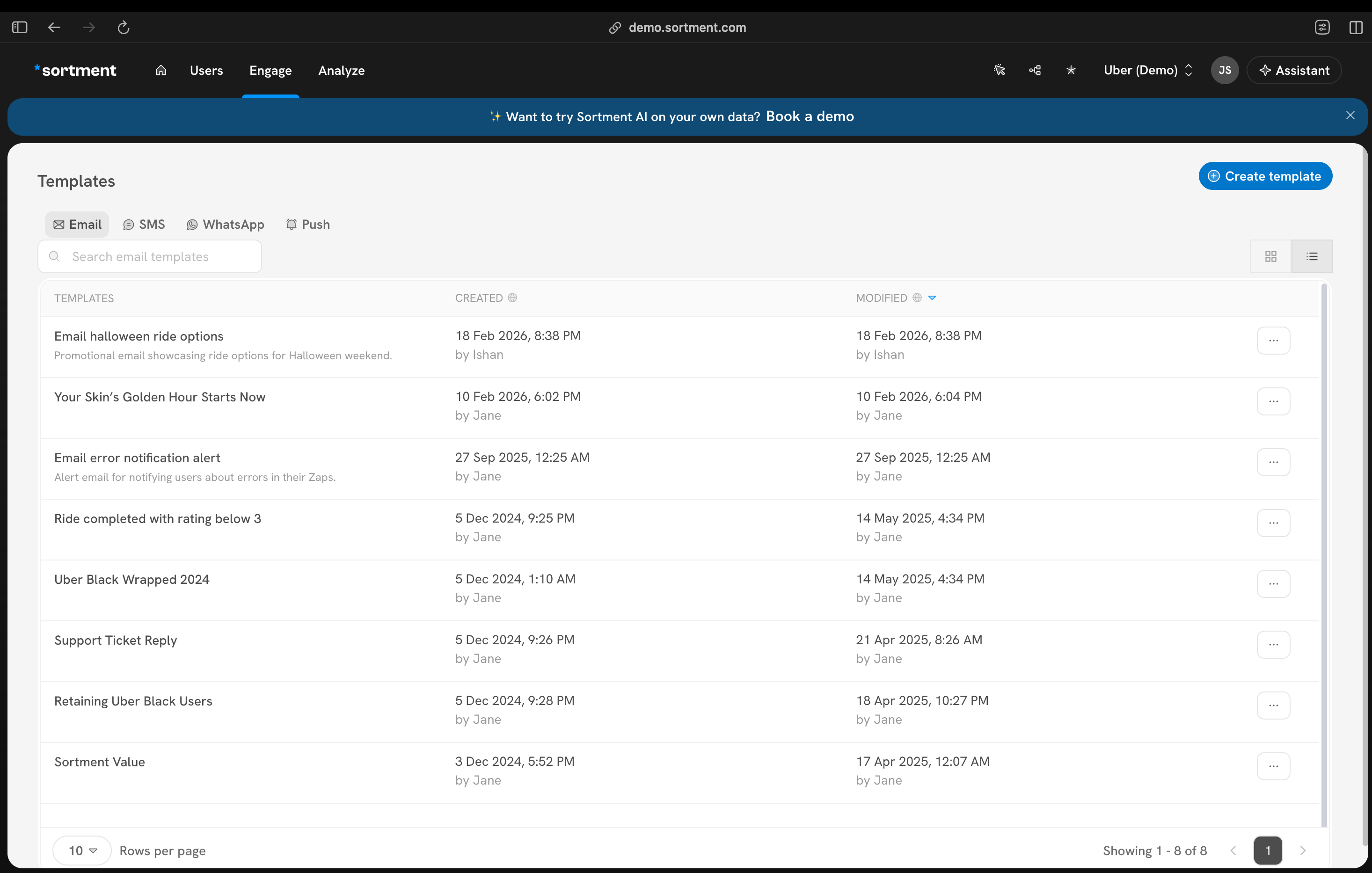
1. Hover over **Engage** in the left sidebar
2. Click on **Templates**
3. Select **Email**
4. Click **Create New**
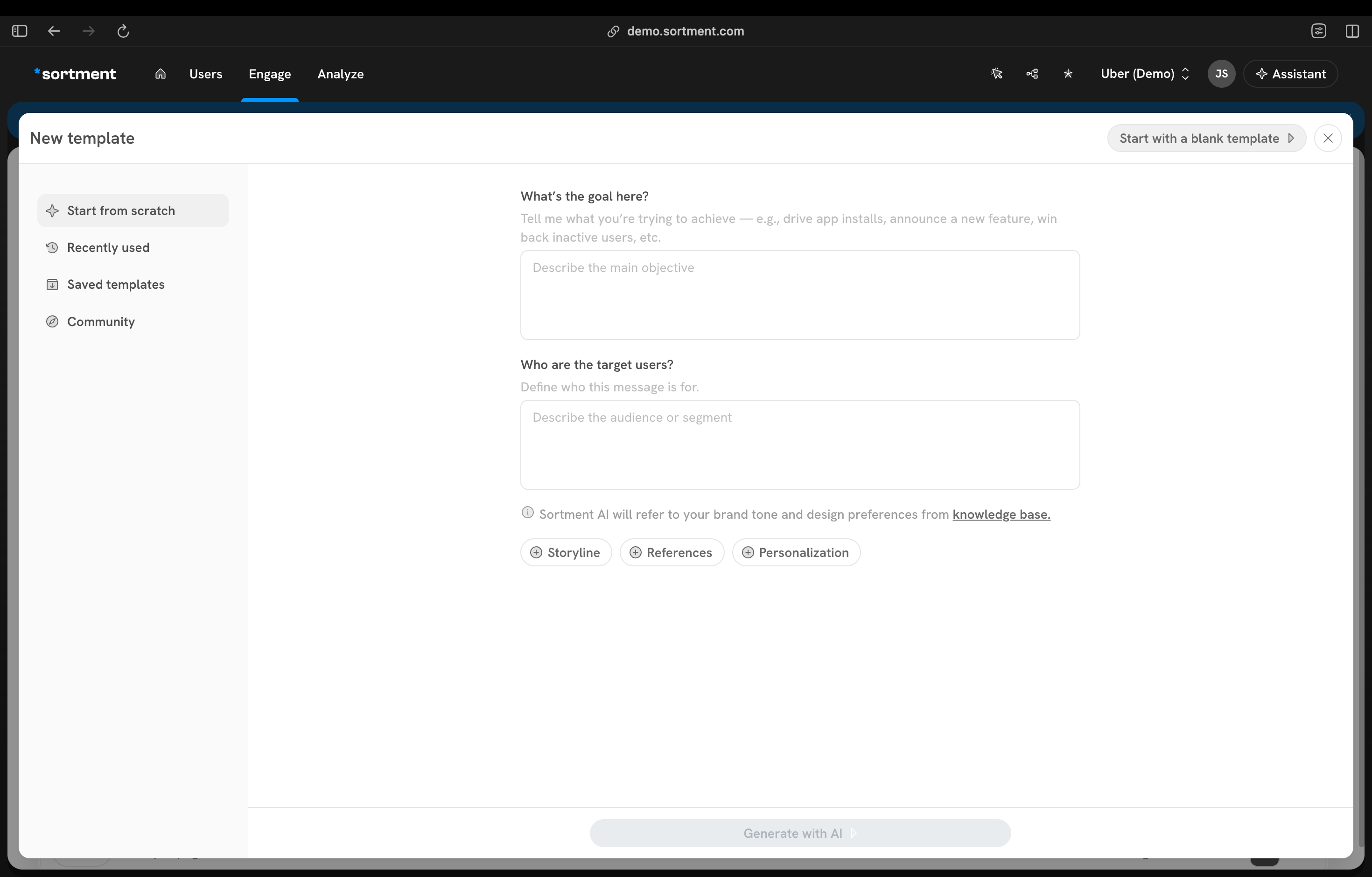
5. The **New Template** panel opens with the AI prompt UI
> If you'd prefer to build the template manually, click **Start with a blank template** in the top-right corner of the panel.
***
#### Fill in the AI Prompt
The AI template builder has two required fields:
**What's the goal here?**
Describe the main objective of your email e.g., drive app installs, announce a new feature, win back inactive users.
* **Field:** `Describe the main objective`
* **Example:** `Re-engage users who haven't logged in for 30 days with a special discount offer`
**Who are the target users?**
Define the audience or segment this message is intended for.
* **Field:** `Describe the audience or segment`
* **Example:** `Mobile app users in the 25–40 age group who have made at least one purchase`
> ℹ️ Sortment AI will automatically refer to your brand tone and design preferences from your knowledge base(intelligence blocks). The more specific your inputs, the better the generated template will match your brand and campaign intent.
***
#### Optional Enhancements
Before generating, you can optionally add more context using the following add-ons:
| Add-on | What it does |
| --------------------- | -------------------------------------------------------------------- |
| **+ Storyline** | Provide a narrative arc or key messages you want the email to follow |
| **+ References** | Attach reference content or links for AI to draw inspiration from |
| **+ Personalization** | Specify personalization tokens or dynamic content to include |
***
#### Generate the Template
Once your inputs are ready, click **Generate with AI** at the bottom of the panel.
Sortment AI will produce a fully designed email template based on your goal, audience, and any optional inputs provided.
***
#### Edit the Generated Template
After generation, the template opens directly in the email editor. You can:
* Edit copy, subject line, and layout manually or using the AI prompt box at the bottom of the screen.
* Swap or update images and CTAs
* Adjust styling to match your campaign needs
All edits are made inline no need to re-generate unless you want a completely different version.
#### **Edit Using Sortment AI**
You can also refine or update the template using AI without starting over. Use this to tweak specific sections, change the tone, or update content. The AI will apply changes while preserving the overall template structure.