> For the complete documentation index, see [llms.txt](https://docs.sortment.com/llms.txt). Markdown versions of documentation pages are available by appending `.md` to page URLs; this page is available as [Markdown](https://docs.sortment.com/engage/campaigns/building-a-campaign.md).
# Building a Campaign
This guide walks you through how to create, configure, test, and launch a campaign in Sortment. Whether you're sending an Email, SMS or Whatsapp, this step-by-step documentation covers required and configuration and test flow for setting up a campaign.
## Navigation: Getting to campaigns
1. Log in to **Sortment**.
2. In the left-hand sidebar, click on **Campaigns**.
3. Click **New campaign** at the top-right corner.
***
## Step-by-Step: Building a campaign
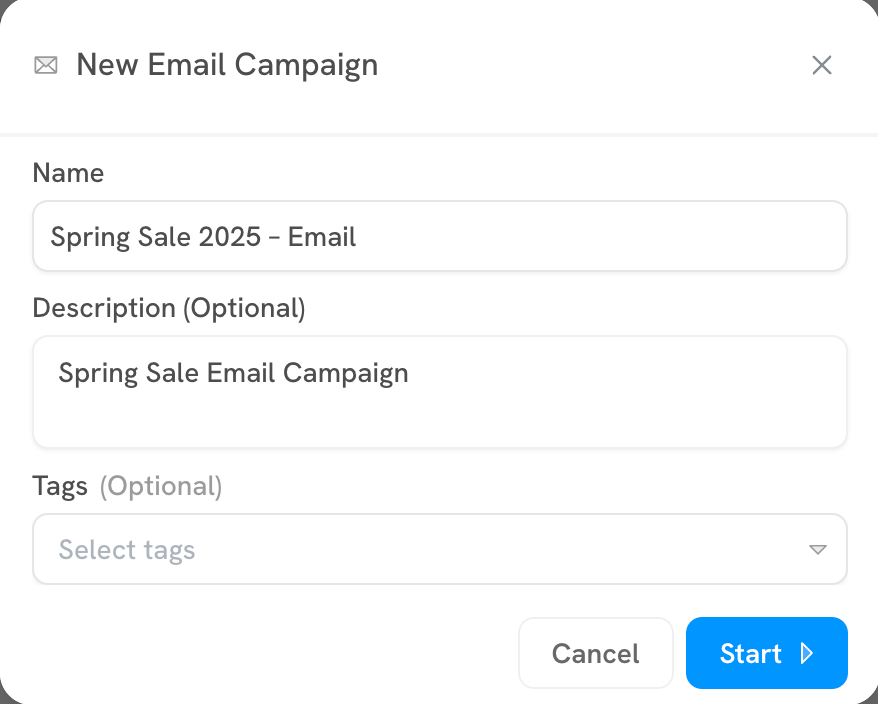
### Step 1: **Name your campaign**
* Choose a clear, descriptive name (e.g., *“Spring Sale 2025 – Email”*).
* This name is also used as the default `utm_campaign` value for any tracked links — choose something concise and meaningful.
* We recommend to provide additional description and tags to your campaign for easier access.
***
### Step 2: **Set up integrations**
This is where you decide *how* and *from where* the campaign will be sent.
**Fields:**
* **Integration**: Select your integration provider (Email/SMS/Whatsapp)
* **Send To**: Choose the customer profile field (e.g., email address).
More inputs for Email
Following extra fields are required in email campaign setup.
* **Sender Name**: What recipients will see as the “From” name.
* **Reply-To Address** : Email where the replies should be directed.
* **Subscription Groups**: User preference group the campaign belongs to – this ensures it is sent only to users who have explicitly opted in or not unsubscribed from this type of communication. More details on setup and usage available in the [document here](/settings/subscription-groups-and-contact-fields.md).
> 💡 Tip: Use a verified integration to avoid deliverability issues.
***
### Step 3: **Choose your audience**
Pick the audience that should receive the campaign. You can pick multiple audiences if you want to target different segments through a campaign. You can setup the audience for the campaign with the follwoing:
* **Send list**: Select an audience previously published or upload a static list.
* **Suppress List (optional)**: Exclude users from a secondary list. Supress list will not be available for upload static list option.
**Estimated Audience Size**: Automatically displayed after selection—review this to ensure the campaign targets the correct users.
{% hint style="info" %}
Upload static list allows you to CSV file to define a static audience. These users may not be part of the warehouse. For examples, list of customers shared by customer success team to inform about a specific issue. [Read more below](#upload-static-list) to know about how to upload static list.
{% endhint %}
***
### Step 4: **Design your content**
You can either:
* **Start from scratch**: Open the visual email editor.
* **Use a template**: Load saved template created previously on Sortment or from the integration.
[Follow the templates document](/engage/campaigns/templates.md) to know about about template creation and management flows.
***
### Step 5: Testing your campaign
After you have selected a template, you can **preview it for a specific user** or **send a test message**.
**Preview as user** *(for Email campaigns only)*
Use the **“View as user”** button to preview how the email will look for a specific user. You can search user with the User ID or contact fields (if set).
{% hint style="info" %}
User search is always available on User ID. To allow search on contact fields (email, phone), [setup contact fields](/settings/subscription-groups-and-contact-fields.md#contact-fields) in your workspace.
{% endhint %}
**Send test message**
Use the **Send Test** button to send a preview of the campaign to internal users.
* Enter one or more test email or phone numbers. If you have [setup test profiles](/settings/test-profiles.md) in your workspace, you will see a list of users already. You can pick from the list or add a new one.
* This sends a real version of the campaign content (with placeholders populated if applicable).
* Check your inbox to ensure layout, links, and dynamic content appear correctly.
***
### Step 6: **Add details & delivery controls**
This section lets you define key message content and control how your campaign is delivered.
Details (Emails only)
**Key Fields** *(for Email campaigns only)*:
* **Subject**: The line that appears in the recipient’s inbox.
* **Preheader (Optional)**: A short summary text that follows the subject line—used to encourage opens.
Personalization
Sortment enables you to personalize your campaign content using dynamic variables pulled from customer data.
#### **Using Variables:**
When creating your content, you can easily insert personalization variables by enclosing them within double curly braces, like `{{ var1 }}` or `{{ customer_name }}`. These variables act as placeholders for personalized details about the user receiving the message, such as their name, address, or any other relevant information from your customer data.
**How personalization works:**
When you create or select a template, Sortment automatically identifies and populates any personalization variables present in your content. These variables appear in the **Personalization section**, where you can easily rename them or remap them to different data sources.
For example, you might remap a `{{ name }}` variable to pull data from the 'Full Name' field within your 'Customer Profiles'.
**Example:**\
If `{{ var1 }}` is mapped to Full Name and `{{ var2 }}` to Email Address, your content may read:
> *Hello {{ var1 }} ({{ var2 }})*\
> And render as:\
> \&#xNAN;*Hello Jane Doe ()*
💡 *Tip: Ensure all selected users have values for the personalization fields to avoid rendering issues in the final message.*
Delivery Controls
* **Throttle Send Speed**: Controls how quickly messages are delivered to reduce the risk of being flagged as spam.
> **Sortment automatically applies a default throttle configuration based on your integration.** You usually don’t need to change this unless you have specific delivery requirements.
***
### Step 7: **Set goals (*****Optional*****)**
Conversion event tracking can be enabled if you have real-time events set in Sortment. In campaign reporting, user actions like message read, link click are already captured.
Conversion tracking is helpful when you want to capture user journey beyond the message, like *order placed* or *subscription purchased*. This can help give you a complete picture of how your campaigns are helping with business goals and metrics.
***
### 🚀 Launching your campaign
Once all steps are complete:
1. Click **Launch** (top-right).
2. Choose one of the following options:
* **Send Now:** Immediately launch the campaign.
* **Schedule for Later:** Set a future time for the campaign to be sent. You can also schedule recurring campaigns (e.g., daily, weekly, monthly) to automate regular outreach.
3. Confirm all configuration steps: Double-check your audience, message content, and channel setup.
4. Monitor progress under the [**Campaigns**](/engage/campaigns/campaign-reports.md) tab: Track delivery, engagement, and other performance metrics in real-time.
***
### Post-send analytics
After sending:
* Track opens, clicks, conversions, and bounces under **Analytics**.
* Review conversion goal completions.
***
## References
### Upload Static List
To upload a CSV, click **Edit** in the Audience section, then select [**Upload Static List**](#upload-static-list). Follow the prompts to upload your file and map the necessary fields (e.g., email, phone number).
**📎 Notes on Using Uploaded CSVs**
{% hint style="danger" %}
**CSV Format Requirements**:
* There is a 50MB limit on the filesize that can be uploaded here.
* The file must follow the specified format.
* Include only the columns you want to use; leave other columns blank.
* Each entry **must include a `distinct_id`** to uniquely identify users.
{% endhint %}
* Only data in the uploaded CSV can be used as variables in the campaign content.
* Engagement or behavioural data (such as clicks or opens) **cannot be used** for audience filtering in these campaigns.
* Ensure your CSV includes all required fields for the selected channel (e.g., email address or phone number).
* Some of the features will not work as expected on Sortment if you send a CSV based campaign: frequency capping and supression list. You will also not have access to fields stored in warehouse. If you are uploading a CSV with userids, same as in the warehouse, we suggest you upload it to the schema (admin permission required)